Author Website Words: A Practical Glossary
Your website is the one piece of your author platform that’s genuinely yours. Amazon, Instagram, and TikTok all rent you space and can change the rules whenever they like, but a site you own doesn’t get throttled and doesn’t vanish. The catch is that building one drops you into a vocabulary nobody warned you about — heroes and viewports and hex codes and breakpoints — and that jargon is what makes the whole project feel harder than it is.
None of it is actually complicated. A hero image is just the big picture at the top of the page. A breakpoint is just the screen width where your layout rearranges itself for a phone. Once the words stop being obstacles, the decisions underneath them turn out to be ones you’re already qualified to make, because they’re decisions about your books and your readers.
Use this as a reference while you build. When a tutorial, a designer, or an AI assistant uses a term you don’t recognize, look it up here and keep going. You don’t need to memorize any of it, and you certainly don’t need to know it before you start.
Page Anatomy and Layout
- Above the fold: The part of a page a visitor sees before scrolling; the term is borrowed from newspapers, and it’s why your most important message belongs at the top.
- Anchor link (jump link): A link that scrolls you to a spot further down the same page instead of loading a new one; it’s how a single-page site’s menu works.
- Call to action (CTA): The one thing you want a visitor to do on a page, like “Join my newsletter” or “Buy the book,” usually styled as a button.
- Card: A self-contained box holding one item’s image, title, and description, repeated in a grid — the usual way a books page is laid out.
- Carousel (slider): A rotating set of images or panels in a single slot; eye-catching, but most visitors never see past the first one.
- Eyebrow: The small line of text sitting directly above a heading, used as a label or category (“New Release,” “Book Three”).
- Footer: The strip at the very bottom of every page, typically holding your contact email, social links, and copyright.
- Gradient: A smooth blend from one color to another, often used as a background when there’s no photo to put there.
- Grid: The invisible column structure a layout aligns to, which is what makes a page feel orderly rather than scattered.
- Hamburger menu: The three-line icon that opens your navigation on a phone, where a full menu wouldn’t fit.
- Header: The strip at the top of every page that holds your name or logo and your navigation menu.
- Hero image: The large image at the top of a page — the first thing a visitor sees before scrolling.
- Hero section (hero banner): The whole top block of a page, combining the hero image or background color with your title, tagline, and main button.
- Lightbox: An overlay that enlarges an image over a dimmed page when clicked, without leaving the page.
- Modal (popup): A box that appears over the page and blocks interaction until dismissed; commonly used, and commonly resented, for newsletter signups.
- Navigation (nav): The menu of links to your main pages; nav order is simply the left-to-right sequence they appear in.
- Opacity: How see-through something is; a fully opaque overlay hides the image behind it, a low-opacity one lets it show through.
- Overlay: A tinted layer placed over an image so that text sitting on top of it stays readable.
- Sidebar: A narrow column beside the main content, used for things like a signup box or a book list.
- Sticky header: A header that stays visible as you scroll, keeping your navigation always within reach.
- Template: A reusable page skeleton that gets combined with your text to produce a finished page, so every book page looks consistent without you rebuilding it.
- White space: The empty space around text and images; more of it makes a page feel calmer and easier to read, not emptier.
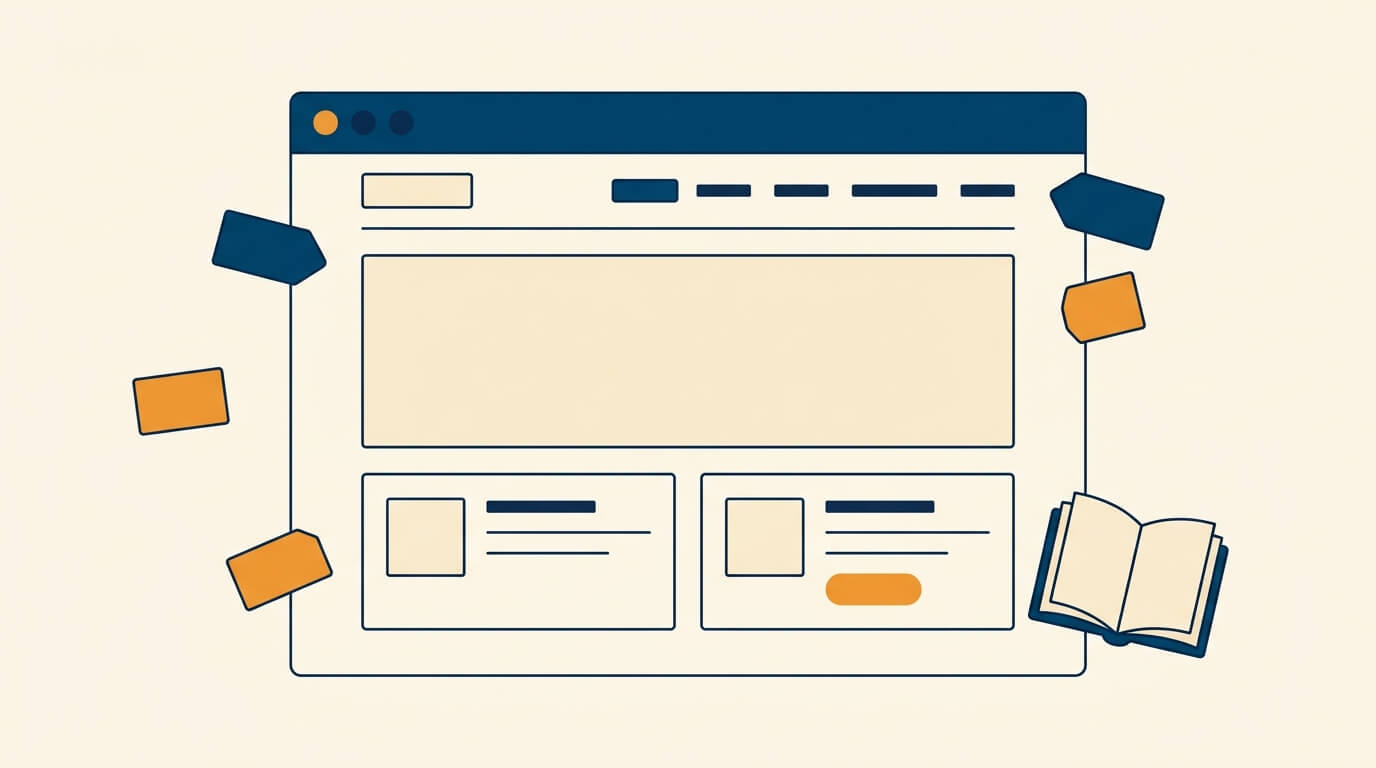
- Wireframe: A rough boxes-and-lines sketch of a page’s layout, made before anyone worries about colors or images.
Site Structure and Pages
- 404 page: The page shown when a visitor requests something that doesn’t exist, usually because of a typo or a deleted page.
- About page: Your bio page; for most authors it’s the second-most-visited page on the site.
- Book detail page: A page devoted to a single title, with its cover, description, and buy links.
- Breadcrumb: A trail of small links near the top showing where you are in the site’s structure (Home › Books › The Hidden Realm).
- Contact form: A form on your site that sends you a message without exposing your email address to spammers.
- Form service: An outside service that receives your contact form submissions and emails them to you, since a static site can’t process forms by itself.
- Homepage (index.html): Your site’s front page; index.html is the filename web servers look for by default when someone visits your domain.
- Landing page: A standalone page built for one purpose — a launch, a giveaway, an ad — usually with no navigation, so there’s nothing to do but the one thing.
- Media kit (press kit): A page collecting your bio, headshot, cover images, and contact details in a form journalists and event organizers can grab.
- Multi-page site: A site where each section (Books, About, Contact) is its own separate page; the better choice once you have several books or series.
- Newsletter embed (opt-in form): A snippet of code from your email provider that puts a signup box directly on your page.
- Permalink: The permanent URL of a given page, the one that shouldn’t change even if you redesign around it.
- Placeholder: Temporary stand-in text, an image, or a link that you replace later once you have the real thing.
- Retailer links (buy links): The links from your book page out to Amazon, Kobo, or wherever readers can purchase it.
- Single-page site: A site where everything lives on one long page and the menu jumps you up and down it; fast and simple, but it gets unwieldy as you add books.
- Sitemap: A file listing all your pages so search engines can find them; also, less technically, a diagram of how your pages connect.
- Slug: The short, readable part of a URL that identifies one page (the about in example.com/about).
- Universal book link: A single link that sends each reader to their own preferred store, rather than forcing everyone to Amazon.
Design and Branding
- Accent color: A color used sparingly for emphasis — buttons, links, highlights — against your primary and neutral colors.
- Brand guidelines: The document recording your colors, fonts, voice, and imagery rules, so everything you make stays consistent.
- Color palette: The small fixed set of colors your brand uses everywhere.
- Corner radius: How rounded the corners of your buttons and boxes are; sharp corners read as formal, rounded ones as friendly.
- Design system: The full set of reusable decisions — colors, type, spacing, buttons — that keeps everything you build looking related.
- Hex code: The six-character code for an exact color (like #2F6B4F), which you paste into Canva, Photoshop, or your site.
- Icon set: A matched family of small symbols (email, cart, social) drawn in a single consistent style.
- Logo: The designed visual that represents you, whether that’s your name set in type or a symbol.
- Mark: Any symbol standing in for you or your work; often used loosely as a synonym for logo, though a mark can also be something you trademark that isn’t your logo.
- Mockup: A picture of what a design will look like when finished, before it’s actually built.
- Neutral color: The greys, creams, and near-blacks that carry most of your text and backgrounds while your brand colors do the work.
- Primary color: Your dominant brand color, the one readers associate with you.
- RGB: The red/green/blue system screens use to make color; it’s why a color on your monitor never quite matches the same color in print, which uses CMYK inks instead.
- Style tile: A one-page sample showing your colors, fonts, and buttons together, used to agree on a direction before building pages.
- Tagline: The short reader-facing line that captures what your books deliver.
- Trademark: Legal protection for a name or symbol identifying your work in the marketplace; related to your logo, but not the same thing.
- Wordmark: A logo made only from letters, with no icon or picture.
Typography on the Web
- Body text: The main reading text of your page, as opposed to headings and captions.
- Font: A specific style and size of a typeface; in everyday web use, people say “font” when they mean typeface, and nobody minds.
- Font pairing: Two typefaces chosen to work together, typically one for headings and one for body text.
- Font stack: The ordered list of fonts a browser tries, falling back to the next if the first isn’t available.
- Font weight: How heavy a font is drawn, given as a number (400 is regular, 700 is bold); the same font at a different weight can change the whole feel.
- Google Fonts: A large free font library that’s the usual default for websites, though you can specify others like Adobe Fonts.
- Heading levels (H1–H6): The ranking of your headings; each page gets one H1, with H2s and H3s nesting beneath it, which helps both readers and search engines follow the structure.
- Leading (line height): The vertical space between lines of text; too tight and text feels cramped, too loose and lines stop feeling connected.
- Line length (measure): How many characters fit on a line; somewhere around 60–75 is comfortable, and full-screen-width text is genuinely tiring to read.
- Sans serif: A typeface without the small finishing strokes; clean and modern, and a good fit for short bursts of text.
- Serif: A typeface with small finishing strokes on the letters; traditionally the easier choice for long stretches of reading.
- Typeface: The designed family of letterforms itself, like Cinzel or Crimson Pro.
- Web font: A font delivered to a visitor’s browser along with your page, so they see your typeface even without it installed.
Want to know more terms related to typography outside of your website?
Read our Glossary of Typography!
That glossary will go into even more detail about all typographic terms related to your books.
Accessibility
- Accessibility check: An automated review of whether your color and size choices are actually readable, including for readers with low vision or color blindness.
- Alt text: A written description of an image, read aloud by screen readers and shown if the image fails to load; every meaningful image needs it.
- ARIA: Extra labels added to code so assistive technology can understand parts of a page that aren’t plain text.
- Contrast ratio: A measure of how far apart your text and background colors are; too little contrast and readers physically can’t read it.
- Focus indicator: The visible outline showing which link or button is selected when someone navigates with the keyboard instead of a mouse.
- Screen reader: Software that reads a page aloud, used by readers who are blind or have low vision.
- Skip link: A hidden link letting keyboard users jump straight to the main content instead of tabbing through your whole menu.
- Tab order: The sequence in which keyboard navigation moves through a page; it should follow the visual order, and sometimes doesn’t.
- WCAG: The standard those readability checks are measured against; it covers on-screen viewing, not print.
Images and Media
- Aspect ratio: The shape of an image — tall (portrait) like a book cover, or wide (landscape) like a hero banner; a portrait cover rarely works as a wide banner.
- Compression: Shrinking a file’s size, either with no visible change or by trading a little quality for a much faster load.
- Favicon: The tiny icon that shows in a browser tab next to your site’s name.
- File size: How many kilobytes an image weighs; smaller files load faster, which matters for readers on phones.
- Image optimization: Resizing and converting images so they look the same but download faster.
- JPEG: A compressed image format best for photos and covers, producing small files.
- Lazy loading: Waiting to download images until a visitor scrolls near them, so the top of your page appears immediately.
- PNG: An image format best for logos and graphics with sharp edges or transparent backgrounds; usually larger than a JPEG.
- Resolution: How many pixels an image contains; too few looks blurry, far too many just wastes your visitors’ data.
- SVG: A format that stays perfectly sharp at any size, ideal for logos and icons but not for photographs.
- Transparent background: An image with no background of its own, so whatever’s behind it shows through — what you want for a logo.
- WebP: A newer image format producing smaller files than JPEG at similar quality, supported by every current browser.
Responsive Design
- Breakpoint: The screen width at which your layout switches rules, for example dropping the hero image below phone size.
- Desktop view: How your site looks on a laptop or monitor, where you have room for wide images and side-by-side layouts.
- Mobile-first: Designing for the phone before the desktop, on the reasonable assumption that most of your readers arrive on one.
- Mobile view: How your site looks on a phone, where everything stacks into one narrow column.
- Responsive design: Building one site that rearranges itself to fit whatever screen it’s opened on, rather than maintaining a separate mobile site.
- Tap target: A button or link big enough to hit reliably with a thumb; a size that’s fine for a mouse often isn’t.
- Viewport: The visible area of a visitor’s screen; its width is what your site measures to decide which layout to use.
Files, Folders, and Code
- Asset: Any file you supply for the site to use, such as a cover, a headshot, a logo, or a bio document.
- Assets folder: A dedicated subfolder where you put those files, so they stay separate from the ones the site generates.
- Build (compile): The step that combines your text files and templates into finished web pages; you re-run it after every change.
- Build script: The small program that performs that build for you, so you never assemble pages by hand.
- CMS (Content Management System): Software like WordPress that lets you create and update content without touching code.
- CSS (Cascading Style Sheets): The file that controls how everything looks — colors, fonts, spacing — separately from the words themselves.
- File extension: The bit after the dot (.html, .md, .jpg) telling your computer what kind of file it is.
- HTML: The file format web pages are actually written in; it holds your content and its structure.
- JavaScript: The code that makes pages interactive; a simple author site needs very little of it, or none.
- Markdown (.md): A plain text file that uses simple marks like # for a heading — easy for you to edit and easy for an AI to read.
- Minification: Stripping the spaces and line breaks out of code files so they download faster; unreadable to humans, identical to browsers.
- Output folder (docs): The folder holding the finished pages that actually go online; everything outside it is source material that stays on your computer.
- Plain text: A file containing only characters, with no hidden formatting — which is why it never breaks and never goes out of date.
- Project folder (working directory): The one folder on your computer you point the AI at, which keeps it from touching anything else on your drive.
- Root folder: The top level of your project, the folder everything else sits inside.
- Static site: A site made of prebuilt files with no database or plugins; fast, cheap to host, and with almost nothing to hack or maintain.
- Version control (Git): A system that tracks every change to your files so you can see what happened and roll back if needed.
- Zip file: A single compressed file bundling your whole finished site, which is what you drag onto a host to publish it.
Domains and Addresses
- A record: The DNS setting pointing your domain at a specific server’s numeric address.
- CNAME record: The DNS setting pointing one name at another name, which is how most hosts ask you to connect your domain.
- DNS (Domain Name System): The internet’s phone book, turning names like yourname.com into the numeric addresses computers use.
- DNS propagation: The lag before a DNS change takes effect everywhere; usually minutes, occasionally up to a couple of days.
- Domain name: The address readers type to find you, like yourname.com; expect to pay roughly $10–15 a year for one.
- Nameserver: The server holding your domain’s DNS records, and therefore the thing that decides where your domain points.
- Redirect (301/302): Automatic forwarding from one address to another; 301 is permanent, 302 is temporary.
- Registrar: The company you register and renew your domain through — separate from whoever hosts your site.
- Subdomain: A prefix creating a separate section, like blog.yourname.com; free hosts hand you one of theirs until you connect your own domain.
- TLD (Top-Level Domain): The ending of a domain, such as .com, .org, or .ink.
- URL: The full web address of a page, including the https:// and everything after the domain.
- WHOIS privacy: A service hiding your home address and phone number from the public domain registration record; worth having.
Hosting and Publishing
- CDN (Content Delivery Network): A network of servers worldwide that keeps copies of your site so it loads quickly no matter where a reader is.
- Deploy: To push your finished files to your host so the public can see them; until you deploy, changes exist only on your computer.
- Drag-and-drop deploy: Publishing by dragging your zip file onto a host’s upload page, with no accounts or commands involved.
- Free tier: The no-cost plan hosts offer, which for a simple author site is genuinely enough rather than a trap.
- GitHub Pages: A free hosting option that serves your site straight out of a code repository.
- Host (web host): The company whose servers hold your site and hand it to visitors.
- HTTPS: The secure version of the web protocol; browsers now warn visitors away from sites without it.
- Localhost: A preview of your site running only on your own computer, visible to nobody else.
- Netlify: A hosting service with a free tier that’s more than enough for an author site.
- Repository (repo): The stored, versioned copy of your project’s files that GitHub keeps for you.
- SSL certificate: The credential that enables HTTPS and puts the padlock in the address bar; most hosts now issue one free and automatically.
- Staging vs production: A private test copy of your site (staging) versus the live one your readers see (production).
- Uptime: The percentage of time your site is actually reachable.
- Vercel: Another hosting service in the same family as Netlify, also with a free tier.
Performance and Maintenance
- Backup: A copy of your site you can restore from; with a static site, the files on your own computer already are one.
- Browser cache: Your browser’s saved copy of images and pages; it’s why a file you just replaced can still look old until you force a refresh.
- Caching: Storing ready-made copies of pages or files so they can be served instantly instead of rebuilt each time.
- Hard refresh: Reloading a page while forcing the browser to discard its cached copy — the fix when you can see an old version of your own site.
- Load time: How long your page takes to become usable; readers on phones start leaving after a few seconds.
- Page weight: The total size of everything a page downloads, usually dominated by images.
Email and Newsletters
- Double opt-in: Requiring a subscriber to confirm by clicking a link in an email, which keeps your list clean and your deliverability healthy.
- Email hosting: The service running mailboxes at your own domain, separate from whoever hosts your website.
- Embed code: The snippet your email provider gives you to paste in, which puts their signup form on your page.
- ESP (Email Service Provider): The service that stores your list and sends your newsletters, such as MailerLite or ConvertKit.
- Lead magnet (reader magnet): A free story or bonus offered in exchange for a newsletter signup.
- Mailing list: The readers who’ve given you permission to email them — the one part of your platform no algorithm can take away.
Search and Analytics
- Analytics: Reports showing how many people visited, where they came from, and what they looked at.
- Bounce rate: The share of visitors who leave without going to a second page; for a single-page site it’s a meaningless number.
- Google Search Console: A free tool showing how your site appears in Google search and flagging problems it finds.
- Indexing: Search engines adding your pages to their catalog; until a page is indexed, nobody can find it by searching.
- Meta description: The short summary shown under your title in search results; it doesn’t affect ranking, but it does affect whether anyone clicks.
- Open Graph: The tags controlling the image and text that appear when your link is shared on social media.
- SEO (Search Engine Optimization): The work of helping search engines understand and rank your pages.
- Title tag: The page title shown in browser tabs and as the headline in search results.
Legal and Compliance
- Affiliate disclosure: The notice required when you earn a commission from links, such as Amazon Associates links.
- Cookie banner: The consent popup shown when a site tracks visitors; a static site with no tracking may not need one at all.
- GDPR: European privacy law affecting how you collect and store data, including newsletter signups, regardless of where you live.
- Privacy policy: The page explaining what data you collect and what you do with it, generally required if you collect anything at all.
AI Tools and Skills
- API key: A code that lets you pay per use instead of by monthly subscription, usually much cheaper for small updates.
- Claude Code: The mode of the Claude desktop app that can read and write files in a folder on your computer, rather than just chatting.
- Cowork: The same underlying capability as Claude Code presented in a friendlier interface.
- Headless browser: A browser the AI drives invisibly in the background to load your page and screenshot it, so it can check its own work.
- Hallucination: An AI stating something confidently that isn’t true — the reason you check its work before publishing.
- Model: The specific AI you’re using; Opus is the strongest and slowest, Sonnet is the everyday workhorse, Haiku is the fastest and cheapest.
- Permission prompt: The “allow this?” question before the AI runs a command or touches a file; it’s your chance to see what it’s about to do.
- Prompt: What you type or say to the AI — plain English is fine.
- Reasoning effort: A setting for how long the AI thinks before answering; higher gives better decisions and slower results.
- Session limit: The cap on how much you can use in a five-hour window on a subscription plan, after which it resets.
- Skill: An instruction file that teaches the AI a specific process, so it asks the right questions in the right order.
- Token: The unit AI usage is counted in, roughly ¾ of a word; it matters for cost on API keys, not on a subscription.