
636 typingmind backups
|

How to Set Up Google Drive Backup & Sync for TypingMind (Step by Step)

Never lose your TypingMind chats, custom personas, or settings again.

A couple of weeks ago, during our live TypingMind training, I did something spectacularly silly: I accidentally synced my main TypingMind install to an empty account and watched years of saved conversations and custom AI personas vanish in an instant.

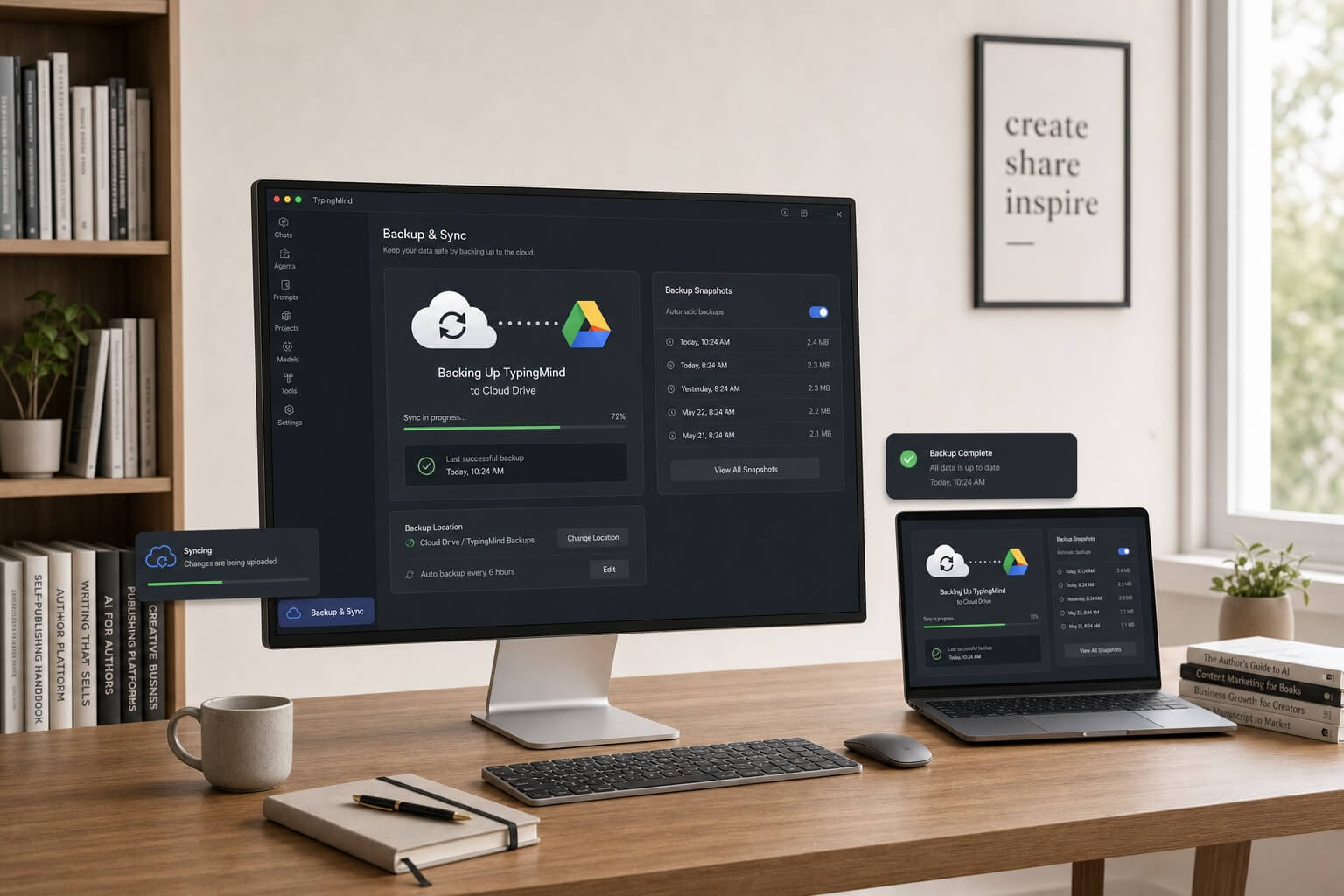
I wasn't panicked, though. That's because I'd already set up the free Cloud Backup & Sync plugin, and within a few clicks, everything was right back where it belonged.

If you're using TypingMind in your author business (and especially if you've built up a library of custom personas, a knowledge base of your own work, or a collection of go-to prompts) this plugin is the safety net you didn't know you needed.

Why This Plugin Beats the Built-In Sync

TypingMind has its own built-in sync, but the open-source Backup & Sync plugin gives you three big advantages:

  • No storage limits. Unlike TypingMind's native sync, there's no cap on the amount of data you can back up.
  • Thirty days of backups. You can roll back to any snapshot from the past month.
  • Manual snapshots. Testing something risky? Take a snapshot first and restore with one click.
  • Cross-machine sync. Install it on your desktop and laptop, and your chats stay in sync.

And since the plugin recently added direct Google Drive support, setup is now easier than ever; especially compared to the S3-compatible storage options that used to be required.

What You'll Need Before You Start

  • TypingMind account (web or desktop app — both work)
  • Google account (free Gmail is fine; Google Workspace works too)
  • About 15 minutes to work through the one-time setup

You can follow along as I walk through the entire process with you in this video, or read the transcript or step-by-step directions below:

Click anywhere within this unedited transcript to jump directly to that part of the training.

Why Use Backup Sync

Blaine Moore: On a recent training for how to use TypingMind in your author business, we talked about the backup and sync plugin.
You can find that here at GitHub, and the nice thing about this is it doesn't have any limits on the amount of data that you can store, unlike the sync that's built into TypingMind itself.
And it's also nice because you can easily sync between two machines, but you also get the last thirty days of backups available, and you can create specific snapshots if you're testing things and want to be able to restore easily.
So the first step is to visit this GitHub page. We're gonna scroll down to…
You can read about all of the features and how it works, but we wanna go down to step one, where it says install the extension, and we're going to copy and paste this URL right here, and that will always get you the latest version of the extension.
All right.

Step 1: Export Local Backup

Once we have that on our clipboard, we will go back into TypingMind, click on Settings, and the very first thing we wanna do, click on App Data and Storage and click on Export.
You should always save all of your information before making big changes. So you may need to check or uncheck any of these, whether you want to save them or not. We're going to click on a Download File.
It will take a few moments for this to sync all of your files and to create the zip file. Once that's done, we can save that onto our local computer.
All right, I'm going to click on Save. We now have a local file that we'll hopefully never need. If you do need to restore it, just click Import and choose that file that you just saved.

Step 2: Install Sync Extension

Now that we have our backup locally stored, we're gonna click on Extensions and paste in that URL that we copied from the GitHub page.
We'll click on Install. It's going to install the extension, and you will need to restart the app. And if you're on TypingMind.com directly in your web browser, you can just refresh that page.
Now you'll notice we have a new button called Sync, and if we click on here, we'll see all of our data that we have.
I've had it installed previously, so it already remembers all of my info.

Step 3: Pick Storage Provider

But we can then go into our storage provider settings and choose what it is that we want.
Now, what do you want to choose as your storage provider? If we come back here, we can see all of the various options that are available.
We'll scroll down a little. You'll see there's a provider section.
There's two main options. There's Amazon's Web Services, their simple storage service. S3 is a common format for people to store things. And so most of the options that are going to be available will be through that. And you can use Amazon S3, Cloudflare R2, Backblaze B2. Google Cloud Storage has its own S3 API.
Wasabi is another one, although I wouldn't use them unless you have a lot of data to store because they charge for at least a terabyte of data.
Cloudflare R2 is actually a really good solution. They are cheaper than Amazon is for their S3 service, even though they're a little bit more expensive than others. But they offer ten gigabytes of data for free per month. So you can have your data on there, and chances are you would never have to pay any extra if you didn't want to.
New since the last time I used this, however, they now have Google Drive available, and you can do that through the native API, and that's even easier to set up.
So that's what I'm about to show you.
All right, if we scroll down, you'll find there's directions for creating the configuration for all of your various items and what the backup modes are and everything; migration. But if we keep going down, you'll find here is the specific cloud storage setup options.
So the first one's going to be AWS S3. It's going to have pretty specific directions on how to do that. Little bit technical.
The easiest one that they have recently added, at least since the last time I've installed this, was for direct Google Drive storage. So if you scroll down here, you'll find the directions inside of Google Drive, and you can also go to the How-To page.
So if we click, come up here and we click into How-To, you'll see there are a bunch of documents you can download for Backblaze, Cloudflare, Google Drive, Google Cloud Storage, and iDrive. And those are just Word documents that will walk you directly through how to do it. Now, they're not necessarily going to be the most up-to-date documents.
Some of the interfaces have changed since those were written, but I'm going to show you how to set it up using Google Drive, which will give you plenty of storage on a free Gmail account, or if you're using Google Workspace, it will work just as well.

Step 4: Create a Google Project

All right, so to do that, we first want to go to Google Console, their cloud storage, and from here we want to create a new project.
So if we click the project clicker, then we can click on New Project, and from here, give it some name that you wanna use. So we'll use “TypingMind Sync” as our name. You can call it whatever you want. You don't need to give it a parent organization. We'll click on Create, and then we need to go back into our picker once it's done being created and choose that project.
So we can go up to our picker here, or we can just click Select Project.

Step 5: Enable Google Drive API

Now that we've chosen our project, come up to the search bar and search for Google Drive API. It'll be the first result that comes up. We can click on that, and that's going to bring us right into where we can enable that, and this will give us access to reading and writing files from within Google Drive.
We'll click on Enable. That'll take a moment.

Step 6: OAuth Consent Setup

Once that has been enabled, we want to go in and set up our privacy consent screen. So what we wanna do is come into our OAuth Consent Screen. Click on Get Started.
And from here, we can give it an app name. So again, TypingMind Sync.
Your user support email is going to be your Google account. Click on Next. For audience, we want to choose External. Click Next.
Put in your email address again. And this can be your Gmail address, or it can be any address that you want it to be.
Click on Next and then click on the I Agree. Now we can create our authentication method.

Step 7: Publish App to Production

All right, now we need to move our app into production and get away from using test users. And the reason you wanna do that is because when it's in testing, you'll get a notification that it's an unverified app, and you'll actually have to reconsent to accessing the app every seven days, which can be a little bit aggravating.
So what we wanna do is click on Audience and then publish the app, and this will make it so that we can connect and stay connected to our app. And for personal use, this is going to be the easiest method.

Step 8: Create OAuth Client

Once we've done that, click on Clients, and from here, we want to create our first client. And for application type, choose Web Application.
And we're just gonna call this TypingMind and add an Authorized JavaScript Origin. Now, there's two options for what you can put here. The first one, which most of us are going to be using, is to just type in the typingmind.com domain name with HTTPS; all of that. If you're using the web browser version or the progressive web app and it's still being hosted from TypingMind, that's what you would add.
If you were using a self-hosted version of it, if you're on the Premier Plan, then you would add your own URL, even if that's at your localhost, in order to authorize where people can connect from.
So we'll scroll down. Do not add any Authorized Redirect URIs. Just click Create.
And we now have our OAuth authentication set up. What we're going to need is this client ID right here. So you can click to copy that. Now, this is only going to be shown to you the one time. You won't be able to access your secret again. We aren't going to need it, but if you want, you can download that for later.
Just make sure you keep that file safe. Otherwise, you'll just need to go in and create a new client and delete this one if you ever do need access to that again. But for right now, all we need is to have this on our clipboard, and we're ready to go back to TypingMind.

Step 9: Connect TypingMind Sync to Google Drive

Now that we are in our Cloud Sync, we can click on storage provider settings, and this is still remembering even though I deleted it), it still remembers my settings from before.
So what we wanna do is switch to Google Drive as our option, and then add in our Client ID, and we get that from our console. We'll copy this, come back into cloud sync and paste that value, and then we can sign in with Google.
Now we'll get our consent form. We can click on our Gmail Account that we are using.
It's going to ask us if we want to give TypingMind access to our Google account. We'll click continue, and we are authenticated successfully.

Step 10: Encryption Key Setup

Now, if we come in, we can go back and update our common settings. You may want to enter an encryption key. And what that will do is allow you to encrypt everything before it gets uploaded to Google Drive.
So if somebody is just browsing around in your Google Drive account, they won't be able to access your settings. Now, you will need to remember what that is. That's basically a password that you'll use if you set this up on a second computer that you wanna be able to sync with, and what that means is everything will need that particular password in order to read the files.
So I'll just put a simple one in here, and then we will click Save.
And our sync is now set up!

Step 11: First Snapshot Backup

We'll come back in. There's no available backups, but we can go in and click on the sync button, and we'll take a snapshot. So this snapshot is going to be “initial backup”. We'll click OK.
And this may take a few minutes depending on how long you've been using TypingMind. I've been using it for a few years, so it can take a little while to back up.
If this is one of the first things that you've done and you've only been using TypingMind a little while, then it should be relatively straightforward.
All right, we have successfully created our snapshot!
We'll click OK. Now we can see we have our initial backup, and we're pretty much all set. It's automatically gonna synchronize. If I install this on my laptop, I'll be able to access, all of the same chats from between the two different apps; the two different systems.
And we're in good shape! I'll just save one more time for the heck of it, and I'm all set and ready to go.

Bonus Step: Verify Files are Encrypted

All right, one last thing since we are using Google Drive. I clicked into my drive. I can see my TypingMind Cloud Sync. So if I click in here and we find our files, and I can go in, if I check my backups, I can actually scroll right into and find my chats.
And you'll see here are all the different chats, but if I want to click into any individual one, you'll see because we used that encryption key, it's all going to be gobbledygook. It won't be something that anyone can actually read, and they'll all be not obviously the same, but they'll all be similar as that.
So that is why you want to use the encryption key and still have everything work for you.

Resources

I hope you found this quick tutorial useful.
There are written directions below this video that you can watch. And if you don't yet have TypingMind, it is a great app.
We have done a full training on how authors can take advantage of everything it has to offer. So check the link below here. (You will need to be an Apex Authors member in order to watch that.)
If you don't have TypingMind yet, then, I recommend using our referral link, and this will give both of us an extra half gigabyte of cloud storage in our TypingMind accounts. If you do already have it, then I hope that this is helpful. So have a great day, everybody.

AI Transcription provided by Descript.com.

(return to top)


Step 1: Export a Local Backup (Safety First)

Before making any big changes, always save a local copy of your data.

  1. In TypingMind, go to Settings → App Data & Storage.
  2. Click Export.
  3. Check or uncheck which data you want to include (chats, prompts, settings, etc.)
  4. Click Download File and save the .zip file somewhere safe on your computer.

If you ever need to restore from this file, just click Import in that same menu and select it. Hopefully you'll never need it — but you'll be glad it's there.


Step 2: Install the Backup & Sync Extension

  1. Head to the TypingMind Cloud-Sync Plugin GitHub page
  2. Scroll down to Step 1: Install the Extension and copy the install URL. (This URL always points to the latest version.) Alternatively copy this link which was current as of when this tutorial was put together.
  3. Back in TypingMind, go to Settings → Extensions.
  4. Paste the URL and click Install.
  5. Restart TypingMind (or just refresh the page if you're on typingmind.com).

You'll now see a new Sync button in your TypingMind interface.


Step 3: Choose Your Storage Provider

Click the Sync button, then open Storage Provider Settings. You'll see several options, but here's the short version:

  • Google Drive (recommended): The easiest option, uses the native Google API, and you get 15 GB free with any Gmail account.
  • Cloudflare R2: Also great — 10 GB free per month, and you'll almost certainly never exceed it with TypingMind data alone.
  • AWS S3, Backblaze B2, Google Cloud Storage, Wasabi: All work fine, but require more technical setup than Google Drive.

For this guide, we're using Google Drive.


Step 4: Create a Google Cloud Project

Now we switch over to Google's side of things:

  1. Go to the Google Cloud Console.
  2. Click the project dropdown at the top of the page, then click New Project.
  3. Name it something recognizable — e.g., “TypingMind Sync.”
  4. Leave the organization field blank (not needed for personal use) and click Create.
  5. Once it finishes, use the project picker to select your new project.

Step 5: Enable the Google Drive API

  1. In the Google Cloud Console search bar, type “Google Drive API” and select the first result.
  2. Click Enable.

This gives your project permission to read from and write files to your Google Drive.


Step 6: Set Up the OAuth Consent Screen

  1. In the left sidebar, go to APIs & Services → OAuth consent screen.
  2. Click Get Started.
  3. Fill in:
    • App name: “TypingMind Sync” (or whatever you like)
    • User support email: your Google email address
  4. Click Next. For Audience, choose External. Click Next again.
  5. Enter your email address again under developer contact info.
  6. Click Next, then click I Agree.

Step 7: Publish the App (Skip the 7-Day Re-Auth Hassle)

By default, test apps require you to re-consent to access every seven days. Let's fix that:

  1. On the OAuth consent screen page, click Audience.
  2. Click Publish App.

This moves your app into production so the connection stays permanent. (It's still private — nobody else can use it unless you share your credentials.)


Step 8: Create Your OAuth Client ID

  1. Still in the OAuth section, click Clients in the left sidebar.
  2. Click Create Client.
  3. Set Application Type to Web Application.
  4. Give it a name, like “TypingMind.”
  5. Under Authorized JavaScript Origins, add:
    • https://www.typingmind.com (for the web app or PWA)
    • Or, if you're self-hosting on the Premier Plan, enter your own URL (including localhost if applicable)
  6. Leave Authorized Redirect URIs blank. Click Create.

You'll now see a Client ID. Copy it to your clipboard: this is what connects TypingMind to your Google Drive. (You can also download the JSON file for safekeeping, though you won't need the client secret for this setup.)


Step 9: Connect TypingMind to Google Drive

  1. Back in TypingMind, open the Sync panel and go to Storage Provider Settings.
  2. Switch the provider to Google Drive.
  3. Paste your Client ID into the field.
  4. Click Sign in with Google.
  5. Choose your Google account and grant the requested permissions.
  6. You should see a confirmation: Authenticated successfully.

Step 10: Set an Encryption Key (Highly Recommended)

Before you take your first backup, set an encryption key in the Common Settings tab.

This encrypts all your data before it's uploaded to Google Drive. Even if someone somehow accessed your Drive account, your chats and settings would be unreadable gibberish.

  • Choose a password you'll remember. (You'll need it if you ever set up sync on a second machine.)
  • Click Save.

Step 11: Take Your First Snapshot

  1. In the Sync panel, click the Sync button.
  2. Give your first snapshot a name; “initial backup” works fine.
  3. Click OK and let it run.

The time this takes depends on how much data you have. If you've been using TypingMind for years like I have, it may take a few minutes. If you're newer to the platform, it'll be quick.

Once it finishes, you'll see your snapshot listed under Available Backups. From here on, sync happens automatically.


Bonus: Verify Your Files Are Actually Encrypted

If you're curious (or paranoid in a healthy way), open Google Drive and look for the TypingMind Cloud Sync folder. Drill into your backups and you'll find your chat files. If you try to open one, you'll see nothing but encrypted gobbledygook. That's exactly what you want: your data, safely stored, and unreadable to anyone but you.


Why Bother?

If you've invested time into building custom AI personas, curating a knowledge base of your own manuscripts or research, or simply accumulating conversations you plan to revisit, this plugin turns Google Drive into a zero-cost, unlimited backup system that protects all of it.

Set it up once, and then mostly forget about it — until the day you're very glad you didn't.


🎥 Prefer to watch instead? The full video walkthrough is embedded above and walks you through every screen.

🔗 New to TypingMind? If you don't have an account yet, use our referral link and we'll both get an extra half-gigabyte of cloud storage. If you then send us a support ticket letting us know, we're happy to send you an open link to Training #636 (TypingMind: The Author's AI Control Center) for a full deep-dive on using TypingMind in your author business.

Similar Posts